
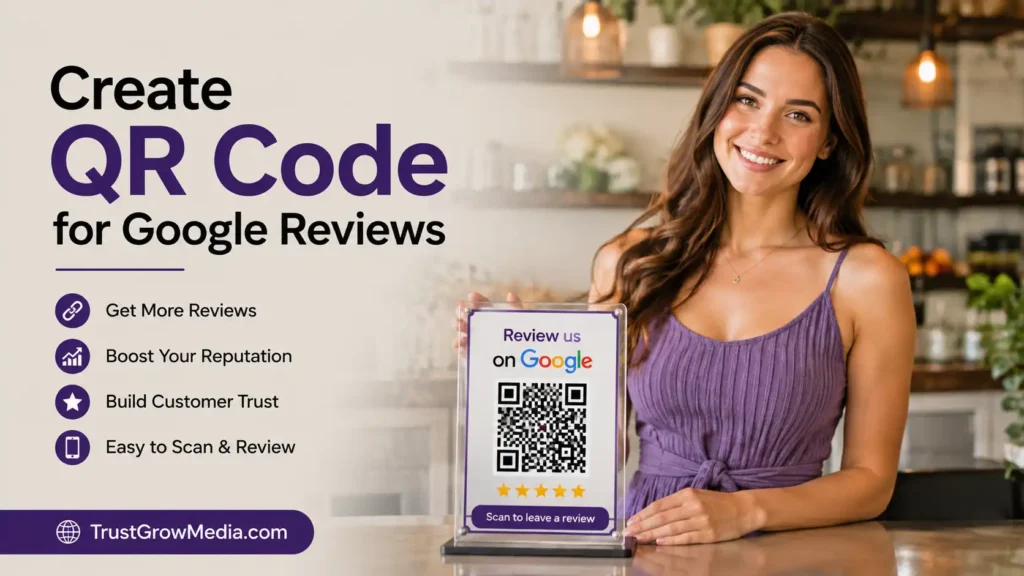
Creating a QR code for Google Reviews is a simple way to make it easier for customers to leave feedback. Start by getting your Google Business Profile review link, then use a trusted QR code generator to turn that link into a scannable code. Customers can scan the code with their phone camera and go directly to your review page without searching for your business. For the best results, place the QR code on receipts, business cards, counters, packaging, tables, signage, or follow-up messages. Keep the call to action clear, test the QR code before publishing it, and make sure customers are invited to leave honest and voluntary reviews rather than being pressured to give a specific rating. A well-designed Google review QR code reduces friction and can help more satisfied customers share their experiences while the interaction is still fresh.

What Is a Google Review QR Code?
A google review qr code is a type of qr code that opens your Google review page when someone scans it. Instead of typing your business name into Google or Google Maps, customers go straight to the right place. That saves time and removes a common barrier in the review process.
For local businesses, this is a simple way to collect customer reviews without adding extra steps. The basic setup is easy: find your review link, paste it into a qr code tool, create the code, and test it. Some tools also let you customize the design or connect people to a specific business location. In short, it turns a slow manual task into a fast action your customers can complete in seconds.
How Google Review QR Codes Work for Local Businesses
Here is the simple version. A google review qr code stores a link to your review page. When a customer scans the qr code with a smartphone camera or qr code scanner, the phone opens that page right away.
That quick access matters for local businesses. People are far more likely to leave feedback when they do not need to search for your google business listing, find the correct profile, and click through multiple screens. One scan keeps the process smooth and easy.
You can place the code where customers already interact with your brand, such as counters, tables, receipts, or packaging. This helps them respond in the moment. For a restaurant, salon, clinic, or retail store, the google review qr code becomes a direct bridge between a good visit and a posted review.
Benefits of Using QR Codes for Google Reviews
One big benefit of a google review qr code is convenience. Customers do not have to remember your name, search for your Google Business Profile, or hunt for the right review section. They scan and land where they need to be.
That smoother path can help you collect more customer feedback and build a stronger online reputation. When positive reviews become easier to leave, your business profile can look more active and trustworthy to new customers who are comparing options.
A few practical advantages stand out:
- It reduces steps in the review journey, which helps more people complete it.
- It supports faster feedback collection at the point of service or purchase.
- It can improve how your business appears to potential buyers checking online reviews.
Why Your Business Needs a Google Review QR Code
If your goal is to earn more positive reviews, a google review qr code is one of the simplest tools you can use. It removes the need for customers to search manually, which often causes drop-off before they ever reach the review page.
Just as important, steady customer reviews strengthen your online reputation. People often decide where to buy, eat, or book based on what others say. Making feedback easier helps you capture more real experiences. The next sections show how that supports visibility, trust, and local growth.
Boosting Local SEO and Search Visibility
Online reviews play a useful role in local seo. When your Google Business Profile collects fresh feedback, your listing can look more active and complete to people browsing local search results. That matters when customers compare businesses nearby.
A google review qr code helps by making review requests easier to act on. Instead of relying on memory, you give people a direct route to the right page. More completed reviews can support your local seo efforts and strengthen your visibility in search results.
This is especially helpful for businesses that depend on nearby buyers. Restaurants, dental offices, stores, and service providers all benefit when their business profile looks trusted and current. A simple scan will not replace good service, but it can make it much easier for satisfied customers to leave the proof others want to see.
Increasing Customer Engagement and Trust
Trust grows when customers see recent feedback from real people. A google review qr code helps you collect that feedback at the right moment, when the experience is still clear in the customer’s mind and they are more likely to respond.
Scanning also improves customer engagement because it feels effortless. Instead of asking people to remember a link later, you invite them to act now. That small shift can lead to more completed customer reviews and a stronger business profile.
For potential customers, those reviews become social proof. They want signs that your service is reliable, your team is helpful, and your business is worth trying. When the review process is simple, you give happy buyers a better chance to share that story and build trust for the next person.
What You Need to Create a Google Review QR Code
Before you create a google review qr code, you need the basics in place. The most important item is a Google Business Profile with access to its review page. Without that, you will not have the review link needed for qr code creation.
You also need the right account access. In practice, that means the admin or a user who can manage the profile and retrieve the link. A gmail account is usually tied to that access. Once you have the review link, the rest of the setup is quick and straightforward.
Google Business Profile Requirements
Yes, you do need a Google Business Profile to create a google review qr code that leads customers to your review page. The qr code works by linking directly to that page, so the profile is the foundation of the whole setup.
Access matters too. You can only get the Google Business reviews link if you are the admin or have permission to manage the listing. Usually, you search for your business name on Google, open the profile, and use the review area to get the shareable link.
If your business has more than one business location, you can create a separate code for each one. That helps customers land on the correct review page for the place they visited. It also keeps feedback more relevant and useful for each location’s business profile review page.
Free Tools and Resources for QR Code Generation
You do not need a paid platform to start. Free tools are available for google review qr code creation, and one commonly used option is The QR Code Generator. It lets you paste your review link and create a scannable code at no cost.
Some features stay free, while others may require sign-up. For example, basic qr code design is often simple, but added branding, tracking, or a dynamic qr code may need an account. That still makes free tools a practical starting point for most businesses.
| Tool/Resource | What It Helps You Do |
| Google Business Profile | Find your review page and copy the review link |
| The QR Code Generator | Turn the link into a google review qr code |
| Smartphone camera or qr code scanner | Test if the code opens the correct page |
| PNG, SVG, or EPS download options | Choose the right file for web use or printing |
Step-by-Step Guide: How to Create a QR Code for Google Reviews
Creating a google review qr code is easier than most business owners expect. Once you have your review link from your google business listing, a qr code generator can convert it into a scannable code in a few clicks.
The key is following the steps in order and checking everything before you share it. You want the code to open the right review page, work on different phones, and fit your branding if needed. Let’s go through each part clearly so you can set it up without confusion.
Step 1: Locate Your Google Review Link
Start by finding your google review link inside your Google Business Profile. Search for your business on Google, open the profile, and look for the option that says “Write a Review” or “Get Reviews.” That area gives you the shareable link tied to your review page.
If you click “Get Reviews,” Google may also show a basic qr code in a pop-up. You can use it, but it is usually not customizable. If you want a cleaner or more branded result, copy the review link instead and use a separate qr code tool.
Here is the simple process:
- Search your business name on Google and open the profile.
- Click “Get Reviews” or find the review section.
- Copy the google review link for later review requests and qr code creation.

Step 2: Choose a Free QR Code Generator
Once you have the link, open a qr code generator. A free option like The QR Code Generator can create your google review qr code quickly. In most cases, the URL field is already selected, which keeps the setup simple.
Paste your link into the tool, and it will usually generate a preview right away. This gives you a fast way to see the scannable code before downloading it. If you want more control, check the customization options offered on the platform.
When comparing tools, keep these points in mind:
- It should support URL-based qr code creation.
- A good google review qr code generator should be easy to use.
- Extra features like tracking, frames, or logo upload may require sign-up.
Step 3: Paste and Customize Your QR Code
After you paste the link, the tool creates a basic qr code. From there, you can turn it into a customized qr code that looks more professional and better matches your brand. This can help people recognize it as part of your business.
Most platforms let you adjust the qr code design with brand colors, frame styles, corner shapes, and pattern changes. Some also allow a business logo in the center. That added branding can make the google review qr code look more polished and trustworthy.
Focus on changes that improve appearance without hurting scannability:
- Use brand colors with enough contrast to stay readable.
- Add your business logo only if the tool supports safe placement.
- Keep the design clean so the qr code still works on different devices.

Step 4: Test, Download, and Print Your QR Code
Before you share anything, test the code. Use your phone or a qr code scanner to make sure it opens the correct review page. Try it from different angles and distances so you know the qr code creation worked properly.
Next, download the file in the format that fits your use. PNG works well for online use and smaller printed pieces. SVG or EPS is better for large surfaces where sharp quality matters. If Google’s built-in code is enough for you, you can also save image directly from the pop-up.
Once it is ready, print it anywhere customers naturally pause:
- business cards, receipts, flyers, and table tents
- posters, menus, invoices, and packaging
- other marketing materials used in-store or during follow-up

Best Practices for Sharing and Using Google Review QR Codes
Creating the code is only the first step. To get results, your google review qr code needs to be easy to notice, easy to scan, and placed where customers are most likely to respond. Good placement can make a big difference in how many reviews you collect.
You should also think about context. Add a short call to action and use the code across both print and digital touchpoints, from business cards to social media posts. The next two sections cover practical sharing ideas and simple branding choices that improve results.
Effective Ways to Share QR Codes With Customers
The best way to share a QR code is to place it where customers already interact with your business. That includes checkout counters, tables, waiting areas, invoices, and packaging. Meeting people at the right moment increases the chance that they will open the review page and respond.
You should also use both digital and offline channels. A printed sign works well in person, while email signatures and social media can reach people after the visit. This gives customers multiple chances to leave feedback without making the process feel hard.
Useful places to share it include:
- receipts, posters, menus, and other print materials
- email signatures, invoices, and social media posts
- storefront displays and other offline channels customers see naturally
Customizing QR Codes for Branding and Accessibility
Strong qr code design does more than look nice. It helps customers recognize the code as part of your brand and makes them more likely to trust it. Using a business logo and familiar brand colors can support that goal.
Still, accessibility matters just as much as style. A qr code should be large enough, clear enough, and printed with enough contrast to scan easily. If the design is too busy, people may struggle to use it, especially on small surfaces like business cards.
Keep these points in mind:
- Choose brand colors that do not reduce contrast or readability.
- Use a business logo only if it does not interfere with scanning.
- Make the qr code large and clear enough for easy accessibility on different devices.
Frequently Asked Questions (FAQ)
Q: Curious about creating a QR code for Google Reviews?
A: Many business owners wonder how it works and how it can elevate their online presence. Using a Google Review QR code generator simplifies the review process, allowing customers to access your review link instantly. It’s a powerful tool for gathering customer feedback and improving your online reputation. Have questions about customization options? You can design a scannable code that incorporates your brand colors and logo, ensuring it fits perfectly into your marketing materials.
Q: Do I need a Google Business Profile to generate a review QR code?
A: Yes. A google review qr code needs a review link from your Google Business Profile. Without a google business listing and access to its review page, there is no destination for the code. Once you copy that review link, you can create the qr code in a generator.
Q: Can I use a Google review QR code for mobile or non-traditional businesses?
A: Yes. If your business has a Google Business Profile, you can create a google review qr code even without a traditional storefront. You can link it to your Google Maps or review page and use a qr code generator for a specific business location or service setup.
Q: Are Google review QR codes safe for collecting customer feedback?
A: Yes, they are safe when the qr code points to your correct review page and is tested before use. A google review qr code is simply a direct link that opens with a qr code scanner. It is a reliable way to collect customer feedback and support your online reputation.
Q: What’s the best way to print and display my Google review QR code?
A: Print your google review qr code on items customers already see, such as business cards, receipts, flyers, menus, and signs. During qr code creation, choose the right file type and save image in good quality. Clear placement on everyday marketing materials improves scan rates and makes feedback easier.
Conclusion
In conclusion, creating a QR code for Google Reviews is a powerful strategy that can enhance your local business’s visibility and reputation. By simplifying the process for your satisfied customers to leave feedback, you not only boost your online presence but also build trust with potential clients. Remember to follow best practices when sharing and using your QR codes to maximize their impact. If you want to elevate your local SEO and improve your customer engagement, don’t hesitate to reach out. Get a free trial consultation with us today to explore how we can help you make the most of your review management strategies!