
Introduction
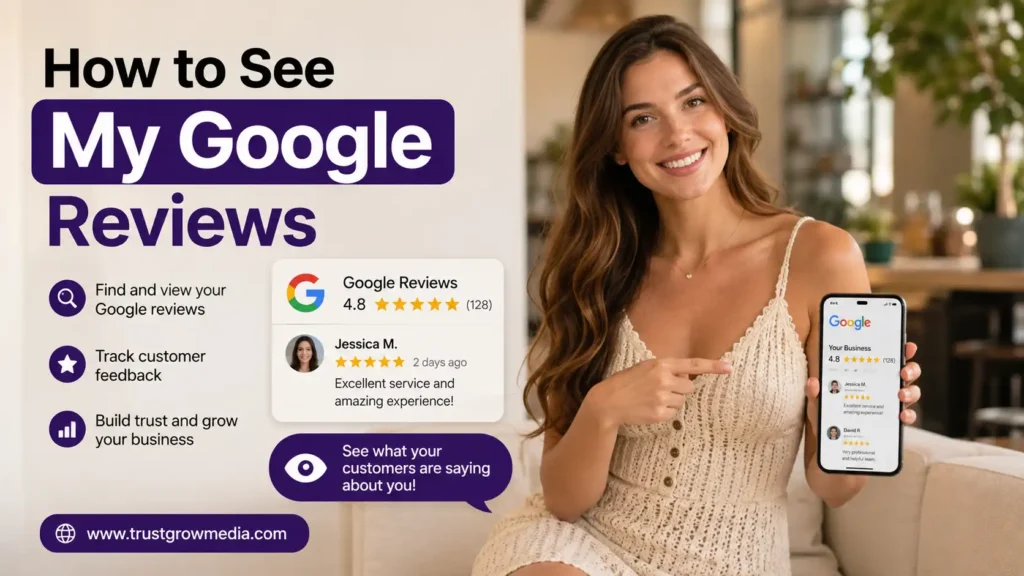
If you have ever wondered how to see my Google reviews, the process is simpler than it sounds. Whether you want to check feedback for your business profile or look at comments connected to Google Maps, you can do it in a few simple steps. Reviews matter because they shape how people see your brand before they visit or buy.
Once you know where to look, you can monitor feedback, respond faster, and stay aware of what customers are saying. Currently, Google does not provide a direct option to export or print all your Google reviews in one step from the platform.
However, you can manually copy and paste your reviews for printing, or use third-party tools and browser extensions to export them for record-keeping or offline viewing. For businesses that want to monitor customer feedback and strengthen their online reputation, Trust GrowMedia can provide helpful reputation-focused guidance.
Understanding Google Reviews and Where They Appear
Google reviews usually appear in your business profile on Google Maps and in search results. When people search your business name, they may see customer reviews in local search results, which makes them a strong form of social proof for businesses today.
If you are a business owner, you can often view feedback in the reviews tab of your Google Business Profile. If you need broader tracking, a review aggregator can help collect online reviews from connected locations into one place. To understand what you can see publicly and what stays separate, start with the basics below.

Difference Between Public Reviews and Private Feedback
Public reviews are the comments and star ratings people can see on Google. These Google reviews show up on listings and help shape how others judge a company. They act as visible business reviews and often influence buying decisions right away.
Private feedback is different. It refers to input that is not posted for everyone to read. From a user perspective, that means not every piece of customer feedback becomes part of a public business page. Public reviews can reveal an area of improvement, while private feedback may stay within a separate support channel.
Keep this distinction in mind:
- Public reviews affect reputation because they are visible to anyone searching online.
- Private feedback does not carry the same public impact, even if it is still useful.
- Fake reviews or inappropriate content in public reviews can be flagged for review by Google.
How Google Associates Reviews With Your Account
Google links your activity to your Google account, which is often the same account tied to your Gmail account. When you post Google reviews, they are connected to that identity, including your profile picture and name settings. That is why your review activity can follow you across devices.
From there, your individual reviews are tied to the service where you posted them. If you leave feedback on Maps, it stays connected to your account activity in Maps. If you manage a listing, review management tools in the Google Business Profile dashboard help you monitor incoming feedback for that location.
To check visibility, sign in with the same account and view the listing as others would. If the review appears on the public page, it is visible. If it does not appear, there may be moderation, technical delay, or another issue covered later in this guide.
Accessing Your Google Reviews on Desktop
On desktop, the fastest route is usually through Google Maps or your Google Business Profile dashboard. After signing into your Google account, search for your business profile and open the reviews tab to see recent feedback. This is the quick way many owners use first.
You can also open the Google Business Profile area from your browser to sort and review comments in one place. Since reviews support trust and search engine optimization, checking them regularly helps you stay responsive. Next, here is how each desktop method works.
Viewing Posted Reviews Through Google Maps on Desktop
If you want a list of your Google Maps reviews on desktop, open Google Maps in your web browser first. Type your business name into the search bar and select the correct listing. Once the panel opens, choose the Reviews tab to see customer reviews connected to that location.
This method is useful because it shows the same public view many customers see. You can scroll through posted comments and check the star rating patterns attached to your business profile. It is also a practical way to confirm how your listing appears in search-driven discovery.
Follow these steps:
- Open Google Maps on desktop.
- Search for your business name and open the listing.
- Click the reviews tab and scroll through the visible feedback.
Yes, you can see and manage parts of your Google reviews from a web browser, especially when paired with your profile tools.
Managing Reviews via Your Google Account Dashboard
Another option is to sign in to your Google account and open your Google Business Profile dashboard. From there, go to the reviews section in the left-side menu to check incoming feedback. This is where many businesses review comments by relevance, date, or rating.
Because Google reviews matter for trust and visibility, this dashboard gives you a more organized view than a simple public listing. You may not always get a full list of every review you have ever written across all Google services in one screen, but you can manage business-facing feedback here and sometimes edit review responses or review handling steps.
| Dashboard Area | What You Can Do |
| Reviews section | View business feedback and sort it by recency, relevance, or rating |
| Business profile tools | Monitor review trends that affect customer trust |
| Review management options | Check feedback details and make response-related updates |
If you need to export or print your Google reviews, the compiled information does not include a built-in export tool.
Seeing Your Google Reviews on Mobile Devices
Yes, you can access Google reviews from your phone. A mobile device gives you a fast way to check your listing while traveling, working on site, or monitoring search results during the day. In most cases, you only need your Google account and the right app.
The Google Maps app is the easiest starting point for most users, while Google Business Profile Manager tools may help with review oversight. Since reviews shape your online reputation, mobile access makes regular checks easier. Let’s look at the main mobile methods now.
Checking Reviews in the Google Maps App
On a mobile device, open the Google Maps app and make sure you are signed into the correct Google account. Enter the business name in the search field, tap the listing, then scroll until you reach the reviews section. This lets you see Google reviews directly from your phone.
The process feels much like desktop, just built for touch navigation. If you recently reviewed a new restaurant or another local service provider, this method helps you revisit the visible listing and check the star rating displayed there. For business owners, it also shows how the Google Business Profile appears to customers.
Use these steps:
- Open the Google Maps app on your phone.
- Search the business name and tap the correct listing.
- Scroll down to the reviews section to read posted feedback.
That answers a common question: yes, you can access your previous Google-facing review activity from your phone through Maps views and connected account tools.
Finding Reviews on the Google Search App
You can also use Google Search on a mobile device to find business reviews. Sign into your Google account, search the business name, and open the listing that appears in search results. From there, look for review content connected to the business profile.
This approach is helpful when you want to see what customers see first. It also lets you gauge review quantity, star averages, and how your listing may support local seo. If you manage the listing, Google Business Profile Manager tools may offer added controls once you move beyond the public page.
Are all your Google reviews viewable in one place? Not always. For many users, reviews are tied to the service where they were posted, so you may need to check each individually unless you use a connected management platform for business locations.
Reviewing Google Play and Other Google Services
Google reviews are not limited to maps listings. If you publish Android apps, feedback may also appear in Google Play. That means your Google account activity can span business listings, app reviews, and other service-specific review areas.
In the Google Play Store, reviews live in a separate reviews section from Google Maps. So, if you are trying to see everything you have written in one place, the short answer is that reviews often remain grouped by platform. The next sections explain where to look.

Locating Your App Ratings and Comments on Google Play
If your business offers apps, open Google Play and sign into the right Google account. In the Google Play Store, search for your app, tap it, and scroll down until you reach the ratings and app reviews area. That is where comments and the visible star rating appear.
This section is separate from maps-based Google reviews, which is why many people do not see all review activity in one dashboard. You can usually filter app reviews by factors such as positive or negative tone, chronology, or even device model, depending on what Google shows for that app.
Here is the basic path:
- Open Google Play and search for the app.
- Select the product and go to the reviews section.
- Open the full ratings area to read more comments.
The source material does not confirm a direct tool to export or print all Google reviews from this section.
Accessing Reviews from Other Google Platforms
Google hosts reviews across different products, so where you look depends on where the review was posted. Business reviews connected to listings are usually checked through Maps or profile tools, while app reviews live under Google Play. Your Google account ties the activity together, but the interfaces stay separate.
On the business side, the Google Maps app and Google Business Profile Manager are the usual paths. On the app side, Google Play handles review browsing and sorting. This setup can make it feel like your feedback is scattered, even though it is still linked to the same account identity.
If you want everything gathered in one operational view for business locations, a review management platform can help pull reviews from connected sources. The compiled information does not promise a native Google feature for exporting or printing all of them together.
Managing and Editing Your Google Reviews
Once you find your Google reviews, the next step is knowing what you can change. If you posted feedback yourself, your Google account gives you ways to edit review details or remove them. If you manage business reviews, you can monitor issues and flag serious problems.
This matters when negative reviews point to poor customer service or another area of improvement. It also matters when you suspect policy violations. Through the Google Maps app or the Google Business Profile dashboard, you can review visibility and decide on necessary changes. Here is how that works.
How to Edit or Delete Your Posted Review
If you left a review for another business, you can change or remove it from your own account activity. The compiled information points to Google Maps as the place to do this. Sign in to the correct Google account, then locate your posted feedback through your contributions area.
After you find the review, use the menu beside it to make necessary changes. This is useful if your experience changed over time, if you want to update negative feedback, or if you posted something you no longer want attached to your profile. The same process may also work through the Google Maps app or a mobile browser.
Use this path:
- Open Google Maps while signed into your Google account.
- Go to Your contributions and find the review you posted.
- Use the three-dot menu to edit review text or delete it.
To check visibility, revisit the public listing after saving your changes.
Troubleshooting Missing or Hidden Reviews
Sometimes Google reviews do not appear right away, or they seem hidden. In many cases, the issue can come from moderation rules rather than a technical failure. Reviews may be removed or limited if Google detects policy violations, off-topic comments, conflicts of interest, fake reviews, or inappropriate content.
For business owners, missing customer reviews can also affect trust signals and lead to lower engagement if people see less feedback than expected. While you cannot delete reviews left by others just because they are negative reviews, you can report content that appears to break the rules on your Google Business Profile.
Check these points first:
- Make sure you are signed into the correct Google account.
- Review whether the content could violate Google policies.
- Flag fake reviews or inappropriate content through the review menu.
If the review shows publicly on the listing, it is visible to others.
Frequently Asked Questions
Q: Can I see all the Google reviews I’ve written in one place?
A: Not always. Google reviews are often grouped by platform, so feedback on Maps, business listings, and apps may appear in different places. Your Google account connects them, but you may need the Google Maps app or the Google Business Profile dashboard reviews section depending on what you are trying to view.
Q: How do I check if my reviews are visible to others?
A: Sign into your Google account, open Google Maps, and visit the listing where the review should appear. Then check the Reviews tab to see whether your post is visible on the public page. If it appears there, others can likely see it too, which can affect online reputation.
Q: Is there a way to export or print my Google reviews?
A: Based on the provided information, there is no confirmed built-in option to export or print all Google reviews directly from your Google account. You can still view them in the reviews section of the Google Business Profile dashboard or check Google Play reviews separately when needed.
Conclusion
In conclusion, being able to see and manage your Google reviews is essential for maintaining your online presence and reputation. Understanding where and how your reviews appear, whether on desktop or mobile, allows you to engage with your audience better and respond to feedback effectively. By following the steps outlined in this guide, you can effortlessly access your reviews and ensure that your voice is heard. If you have any questions or need assistance, don’t hesitate to reach out! Start managing your reviews today and enhance your overall online credibility.